Best Browser Tools That Don’t Require Installation
The best browser tools that do not require installation are the ones you can open, use, and close without turning a simple task into a software setup project.
That matters when you are on a borrowed laptop, a locked-down work machine, a travel device, or a browser-only workflow. You may need to split a long message, check your public IP, clean a PDF, transcribe a short clip, compress an image, sketch a diagram, or scan a suspicious file before opening it. Installing a full desktop app for every one of those jobs is often overkill.
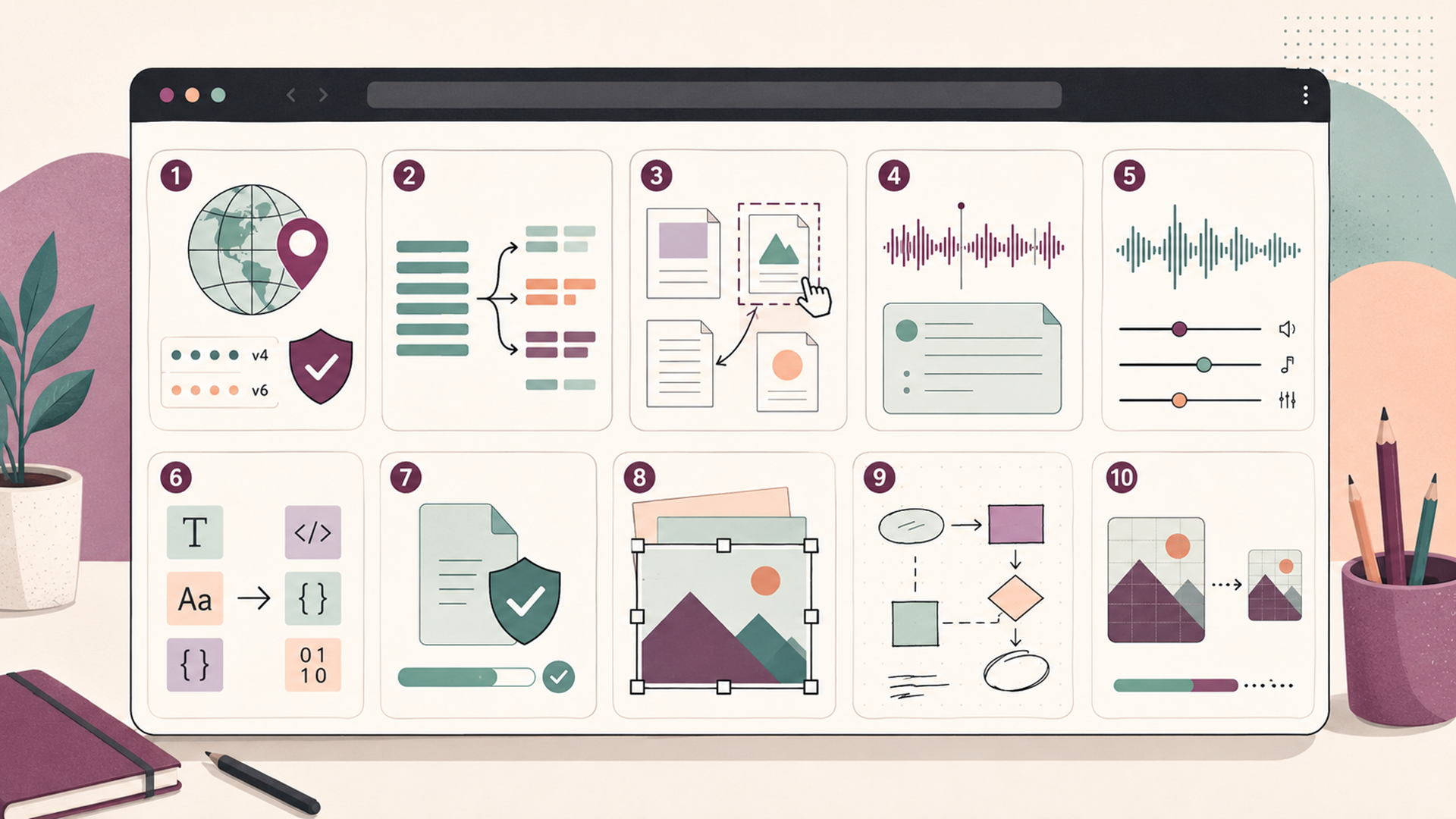
This guide compares 10 useful browser-based tools: six from Jivaro’s apps collection and four external tools from separate sites. The Jivaro tools lead the list because they cover practical everyday workflows: IP lookup, text splitting, PDF editing, transcription, audio cleanup, and format conversion. The external tools round out the setup with security scanning, image editing, diagrams, and image compression.
Quick rule: “No installation” does not automatically mean “private” or “safe.” Some browser tools process files locally, some use vendor services, and some intentionally share submitted files with security partners. Always check the privacy note before uploading sensitive documents, audio, images, or files.
Quick picks: the best no-install browser tools
The four external picks are VirusTotal for suspicious files and URLs, Photopea for browser-based image editing, Excalidraw for diagrams and whiteboards, and Squoosh for image compression.
Why browser tools are often better than installing software
Installed software still matters for heavy professional work. But browser tools win when the job is short, specific, and does not justify a full app install.
A good browser tool should do one thing clearly. It should load quickly, explain what happens to your data, work without a complicated account flow, and let you export or copy the result without trapping you inside a platform.
That is why the best tools in this guide are not only “powerful.” They are practical. TextChunk solves a real messaging problem. NetPeek gives a quick network reality check. Formattica handles everyday text conversion without opening a code editor. Squoosh compresses images without a design suite.
The right browser tool should make a small task feel small again.
Comparison table: 10 useful browser tools
| Tool | Best for | Why it is useful | Watch out for |
|---|---|---|---|
| NetPeek | IP, VPN, proxy, and network checks | Shows public IP details, IPv4/IPv6 detection, hostname, ASN, ISP, approximate location, and privacy signals when available. | It is a browser-visible IP check, not a complete VPN, DNS, WebRTC, or torrent-client leak test. |
| TextChunk | Long message splitting | Splits long text into numbered chunks without cutting words, with an option to end chunks at full sentences. | Best for clean text delivery, not for editing or rewriting the content itself. |
| PDF Patchbox | Quick PDF edits | Handles page reordering, visible patches, signatures, highlights, cleanup presets, selected-page export, and image export. | Its own note says whiteout/redaction is visual and should not be treated as legal-grade redaction. |
| EchoScribe | Speech notes and transcripts | Transcribes microphone or shared tab/screen audio in the browser, with timestamps, markers, editable transcript text, and TXT/CSV downloads. | Browser speech recognition may still rely on the browser or vendor’s speech service. |
| SoundTweak | Audio cleanup and normalization | Batch-normalizes browser-readable audio files, supports previews, output settings, trim/fade controls, and ZIP downloads. | Large files and non-native formats may depend on browser performance and FFmpeg WASM behavior. |
| Formattica | Text and data conversion | Converts and cleans Markdown, HTML, CSV, JSON, YAML, BBCode, URLs, Base64, and plain text. | Great for preparation and cleanup, but still review generated output before publishing or importing it. |
| VirusTotal | Suspicious file and URL checks | Inspects files and URLs with many antivirus scanners, blocklist services, and analysis tools. | Do not upload confidential files; VirusTotal says submitted files and pages may be shared with partners or premium customers. |
| Photopea | Image editing without Photoshop | Runs in the browser, supports layers and many image formats, and says files run locally on your device. | It is powerful, but the interface can feel heavy if you only need a tiny crop or resize. |
| Excalidraw | Diagrams, wireframes, and quick whiteboards | Offers a hand-drawn style whiteboard with export options, real-time collaboration, local-first autosave, and end-to-end encryption for the hosted app. | It is ideal for sketches and systems thinking, not polished production design. |
| Squoosh | Image compression | Reduces image size through multiple formats, and its project page says compression happens locally without sending the image to a server. | Compression settings can reduce visual quality if pushed too far. |
Six Jivaro tools worth keeping bookmarked
1. NetPeek: check your public IP and proxy/VPN route
NetPeek is the first tool to open when you want to answer a simple question: “What public IP does this browser show right now?”
Jivaro’s page describes NetPeek as a browser-based tool for checking public IP and network details. The My IP tab displays public IP address details, IPv4 or IPv6 detection, hostname, ASN, ISP, approximate location, and basic privacy signals such as proxy, VPN, Tor, or hosting detection when available.
That makes it useful before and after turning on a proxy or VPN. Check your normal connection first, connect the VPN or configure the proxy, then refresh NetPeek. If the IP and provider did not change, your setup is not routing the way you expected.
NetPeek pairs naturally with proxy and VPN workflows. For more privacy tooling context, see Best Virtual Private Networks and Best Websites to Buy Single Proxy Servers.
2. TextChunk: split long messages without mangling them
TextChunk is built for a common annoyance: you have a long message, prompt, email, transcript, or document section, but the platform you are using has a practical length limit.
TextChunk splits long text into clean numbered messages without cutting words. It can measure chunks by characters or words, keep whole words intact, prefer ending at a full sentence, and include “Message X of Y” when copying.
That is useful for ChatGPT, Claude, Discord, email, support tickets, social posts, and any place where a pasted wall of text becomes hard to send cleanly. The user experience benefit is not flashy; it is that the receiving person or tool gets a readable sequence instead of a chopped-up mess.
3. PDF Patchbox: quick PDF fixes inside the browser
PDF Patchbox is for the kind of PDF work that is too small for a full PDF editor but too annoying to do manually.
The tool supports uploading PDFs, reordering pages, patching visible content, signing, highlighting, cleaning up scans, and exporting a new file. Its page also says files are handled in the browser and are not intentionally uploaded by the tool.
The important limitation is redaction. PDF Patchbox clearly says its whiteout/redaction feature is visual and should not be treated as legal-grade redaction for sensitive documents. That is exactly the kind of honesty readers should want from a browser tool. Use it for visible cleanup and light editing, not for legal redaction of confidential records.
4. EchoScribe: turn speech into working text
EchoScribe is a browser transcription utility for microphones or user-shared tab/screen audio.
It can transcribe speech from a computer microphone, shared tab, window, or screen with audio enabled. It includes language choices, timestamps, auto-scroll, markers for action/question/quote/important notes, editable transcript text, copy options, and TXT or CSV downloads.
The practical use case is meeting cleanup. You can listen, mark moments, copy the transcript, and turn it into notes. The caveat is that browser security controls audio access, and EchoScribe’s page says browser speech recognition may still use your browser or vendor’s speech service. For sensitive meetings, that distinction matters.
5. SoundTweak: normalize audio without opening a DAW
SoundTweak is useful when audio is too quiet, too uneven, or needs a quick output pass before sharing.
Its page describes a browser tool for batch-normalizing audio files. You can drop in files, review a queue, preview the selected item, normalize loudness, and download individual results or a ZIP. It supports common browser-readable audio files such as MP3, M4A, WAV, FLAC, and OGG, with output settings for formats, bitrates, targets, sample rate, and channels.
Use SoundTweak for practical media workflows: podcast rough cuts, voice notes, class recordings, lightweight demos, and quick audio cleanup before publishing. For professional mastering, use dedicated audio software. For fast normalization, a browser tool is often enough.
6. Formattica: clean and convert text formats fast
Formattica is the browser tool for messy text and format conversion.
It can convert, clean, preview, copy, and download Markdown, HTML, CSV, JSON, YAML, BBCode, URLs, Base64, and plain text. Its presets include Markdown to HTML, HTML to Markdown, CSV to JSON, JSON to CSV, JSON to YAML, clean text, and URL decoding.
This is useful when you are preparing a blog draft, cleaning pasted text, converting a small dataset, or checking how Markdown will render. Formattica’s page says all conversions run in the browser, files are read locally, and optional history is stored only in the browser.
Four external browser tools that complete the setup
7. VirusTotal: scan suspicious files and URLs before opening them
VirusTotal is the security checkpoint in this list.
VirusTotal’s documentation says it inspects items with more than 70 antivirus scanners and URL/domain blocklisting services, plus additional tools that extract signals from submitted content. Users can submit files or URLs through the public web interface, browser extensions, or API.
Use VirusTotal before opening a suspicious file, clicking a strange shortened link, or trusting a download from an unfamiliar source. But do not upload confidential files. VirusTotal says submitted files, URLs, domains, and pages contribute to a shared security ecosystem, and the contents of submitted files or pages may be shared with premium customers and security partners.
The user-experience rule is simple: VirusTotal is excellent for suspicious public files and links. It is not the right place for private contracts, customer data, unreleased business documents, or anything sensitive.
8. Photopea: edit images without installing a design app
Photopea is one of the most capable browser-based image editors.
Its official page describes it as a free online photo editor that works in the browser with no downloads. It also says Photopea runs on your device using local CPU/GPU resources and that files never leave your device unless you choose an action that sends them elsewhere.
Photopea makes sense when you need layers, masks, PSD support, cropping, resizing, vector work, or file-format flexibility. If all you need is compression, use Squoosh. If you need actual editing, Photopea is much closer to a full design workspace.
9. Excalidraw: sketch diagrams and workflows quickly
Excalidraw is the easiest tool in this list to recommend for diagrams.
The project describes itself as an open-source, hand-drawn-style virtual whiteboard. Its GitHub page lists support for an infinite canvas, dark mode, customization, images, shape libraries, PNG/SVG export, arrows, labels, undo/redo, and wide drawing tools. The hosted app also lists real-time collaboration, end-to-end encryption, local-first support, and shareable readonly links.
Use Excalidraw for system maps, lightweight product diagrams, meeting sketches, architecture notes, and rough UI flows. It is not meant to replace a polished vector design suite. Its strength is speed and clarity.
10. Squoosh: compress images before uploading them
Squoosh is the browser tool to use before uploading large images to a blog, landing page, email, or documentation page.
The Squoosh project describes it as an image compression web app that reduces image sizes through multiple formats. Its page also says Squoosh does not send your image to a server because compression happens locally.
That makes Squoosh a good last step after editing in Photopea or creating graphics elsewhere. Open the image, compare quality against file size, then save a smaller version. Faster images usually make pages feel better, especially on mobile connections.
Useful browser-tool stacks by workflow
The best way to use these tools is not one at a time. It is to combine them into small workflows.
| Workflow | Tools to combine | Why this stack works |
|---|---|---|
| Privacy and proxy check | NetPeek + VPN/proxy guide | Check your visible browser IP before and after enabling a proxy or VPN. |
| Long AI prompt or support message | TextChunk + Formattica | Clean the source text, then split it into readable chunks. |
| Quick document cleanup | PDF Patchbox + Formattica | Clean text and patch a PDF without installing a desktop editor. |
| Meeting notes | EchoScribe + TextChunk | Capture a transcript, then split or share the output cleanly. |
| Audio clip preparation | SoundTweak | Normalize loudness, preview, trim, fade, and export. |
| Blog image workflow | Photopea + Squoosh | Edit the image first, then compress it for faster page loads. |
| Safety check before opening a file | VirusTotal | Scan suspicious public files or URLs before trusting them. |
| Explaining a process | Excalidraw + Squoosh | Sketch a diagram, export it, then compress it for publishing. |
Privacy cautions before using no-install tools
Browser tools can feel safer because they do not require installation, but privacy depends on how each tool works.
Local browser processing is better for sensitive files, but still not automatic privacy. Photopea says files run locally on your device. Squoosh says image compression happens locally. Formattica says conversions run in the browser and files are read locally. Those are useful signals, but you should still avoid sensitive files unless you understand the tool and the browser environment.
Security scanners are different. VirusTotal is intentionally a sharing-centered security platform. That makes it useful for threat intelligence, but it also means confidential files do not belong there.
Browser speech tools need extra care. EchoScribe says it does not add a backend or upload audio from its code block, but browser speech recognition may still use your browser or vendor’s speech service. For confidential calls, check your browser and organization’s policy first.
PDF redaction is a special case. Visual whiteout is not the same as secure redaction. PDF Patchbox says its redaction/whiteout covers visible content but should not be treated as legal-grade redaction for sensitive documents.
The safest habit is to match the tool to the file. Use browser utilities for everyday cleanup and public files. Use dedicated, audited, policy-approved tools for confidential, legal, medical, financial, or enterprise-sensitive material.
How to choose the right browser tool
Start with the job, not the brand.
If the job is a quick network check, use NetPeek. If the job is a long text that needs to fit into smaller messages, use TextChunk. If the job is converting text or structured data, use Formattica. If the job is a quick PDF patch, use PDF Patchbox. If the job is transcription or audio cleanup, use EchoScribe or SoundTweak.
Then ask three practical questions:
- Will I upload sensitive data? If yes, read the privacy note first.
- Do I need a quick result or professional-grade control? Browser tools are strongest for quick, practical tasks.
- Do I need to repeat this workflow often? If yes, bookmark the tool and build a repeatable stack.
The best browser tools are not replacements for every installed app. They are friction reducers. They help you finish small jobs faster, especially when installing software would slow you down.
FAQ
Sources checked
- Jivaro Apps index
- NetPeek official page
- TextChunk official page
- PDF Patchbox official page
- EchoScribe official page
- SoundTweak official page
- Formattica official page
- VirusTotal “How it works” documentation
- Photopea official page
- Excalidraw GitHub project page
- Squoosh app and Squoosh GitHub project page